Creating Projects - Step by Step Help Guide
This help guide walks you through every step of creating and managing Projects in 913.ai — from setting up your first Project to collaborating with teammates and AI agents. It explains how to name and describe Projects, add members, upload files, and start chats — all with clear examples tailored for insurance, finance, legal, and HR teams. The guide also clarifies how Projects differ from general inbox conversations and how shared memory keeps your work connected.
Last updated 4 months ago
What is a Project
A Project is a focused workspace that keeps your related work together. It groups your chats with AI agents, your files and the working memory for that topic so you and your teammates always see the same context.
Why it helps
Everything about one topic stays together.
Agents can remember the context of the Project and refer to earlier chats and results.
You never lose track of which files belong to which workstream
Part 1 - Creating a Project
Follow these steps the first time you set up a Project.
Go to the Projects page in the sidebar.
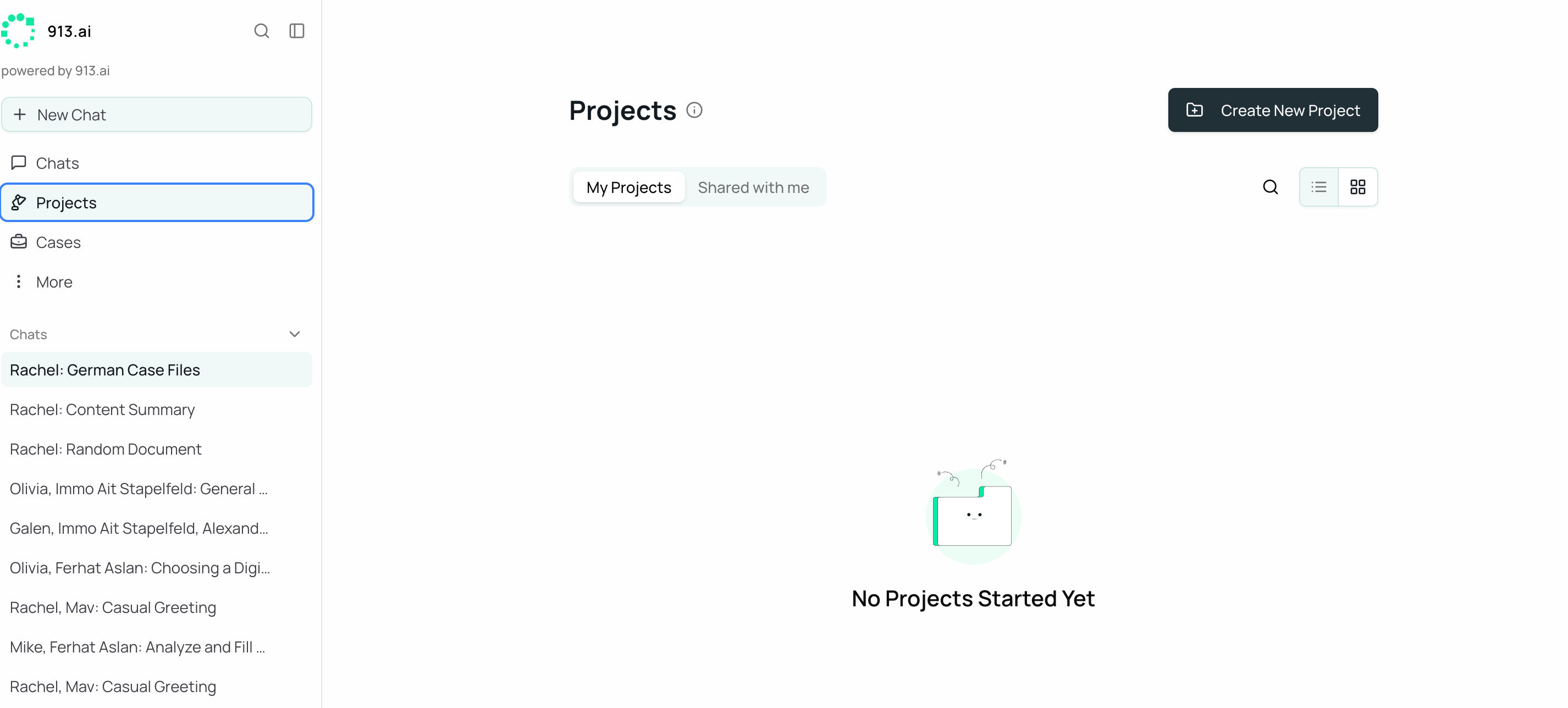
Click Create New Project. You will see a pop up that briefly explains what a Project is.
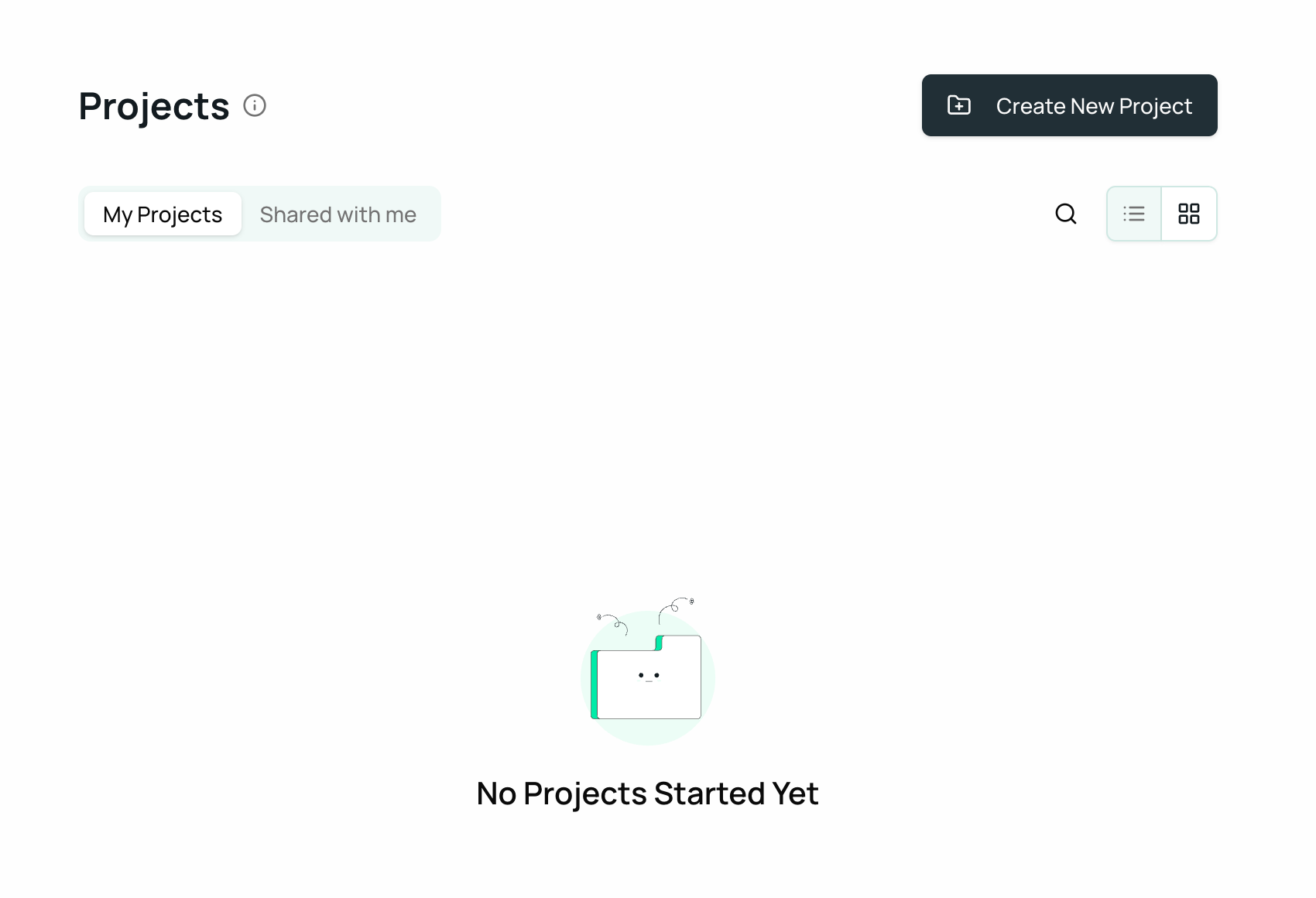
Name your Project and add a short description so teammates instantly know what it is about and can find it later. You will also see suggestions for good names.
Examples:
Insurance: "Claims Processing Improvements - Q1"
Legal: "Client ABC - NDA and MSA Review"
HR: "Onboarding Handbook Update"
Finance: "Monthly Close - January"
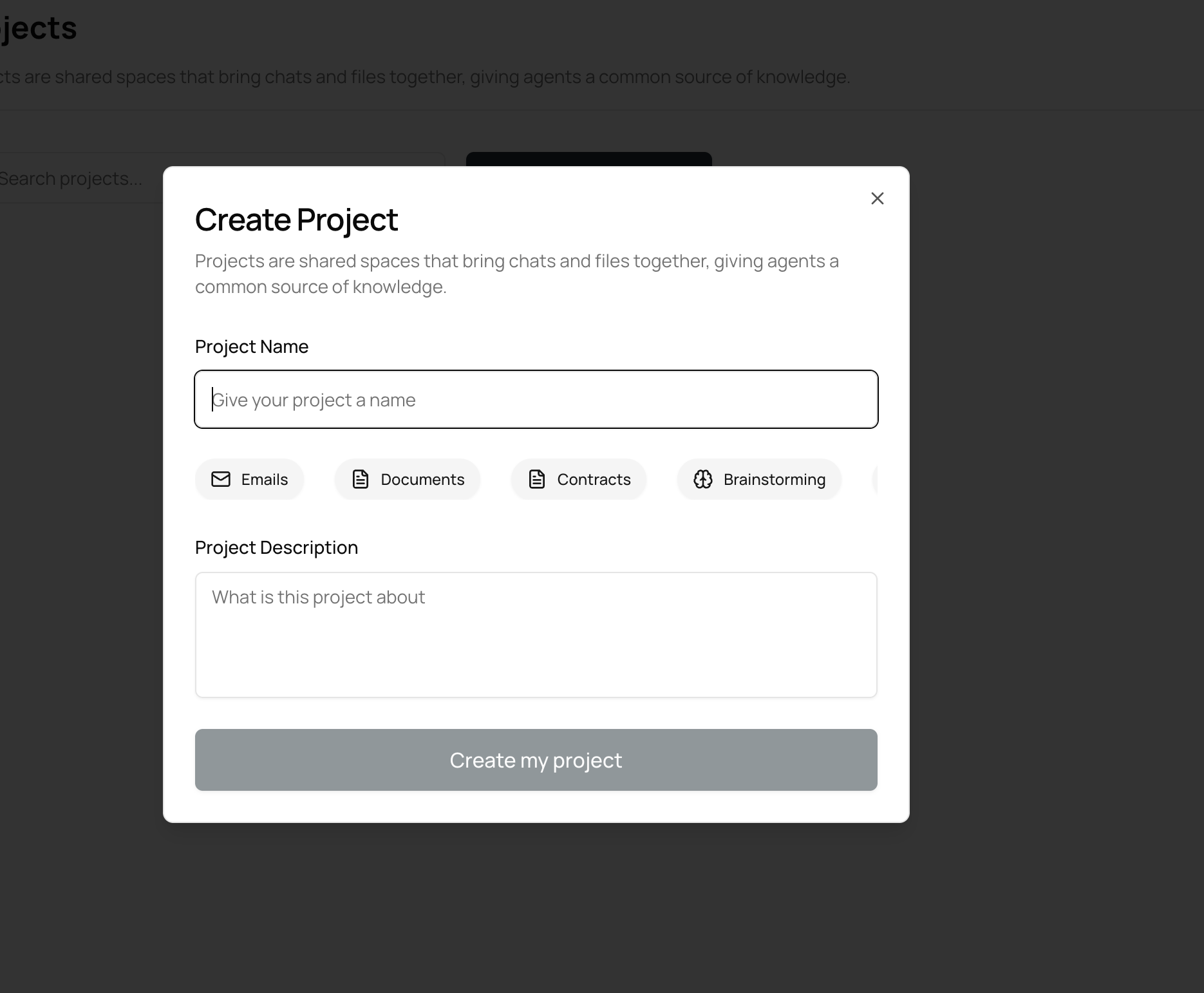
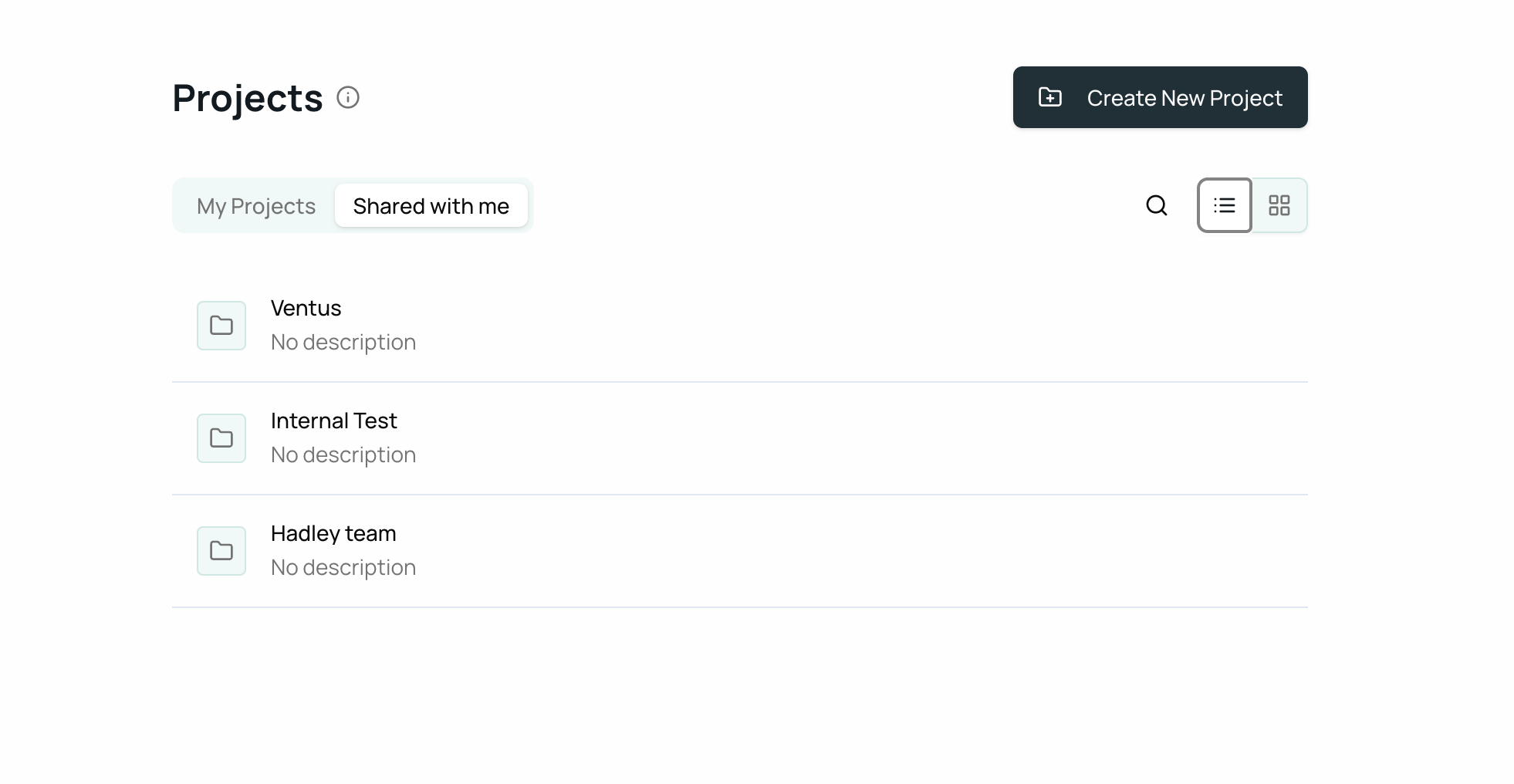
Create the Project. Click Create my project. Your Project is now created and appears in your Projects list.
Note:
If this is your first Project, your list may be empty until you add more over time. All your projects will be shown here in this space.
Part 2 - Understanding the Project Workspace
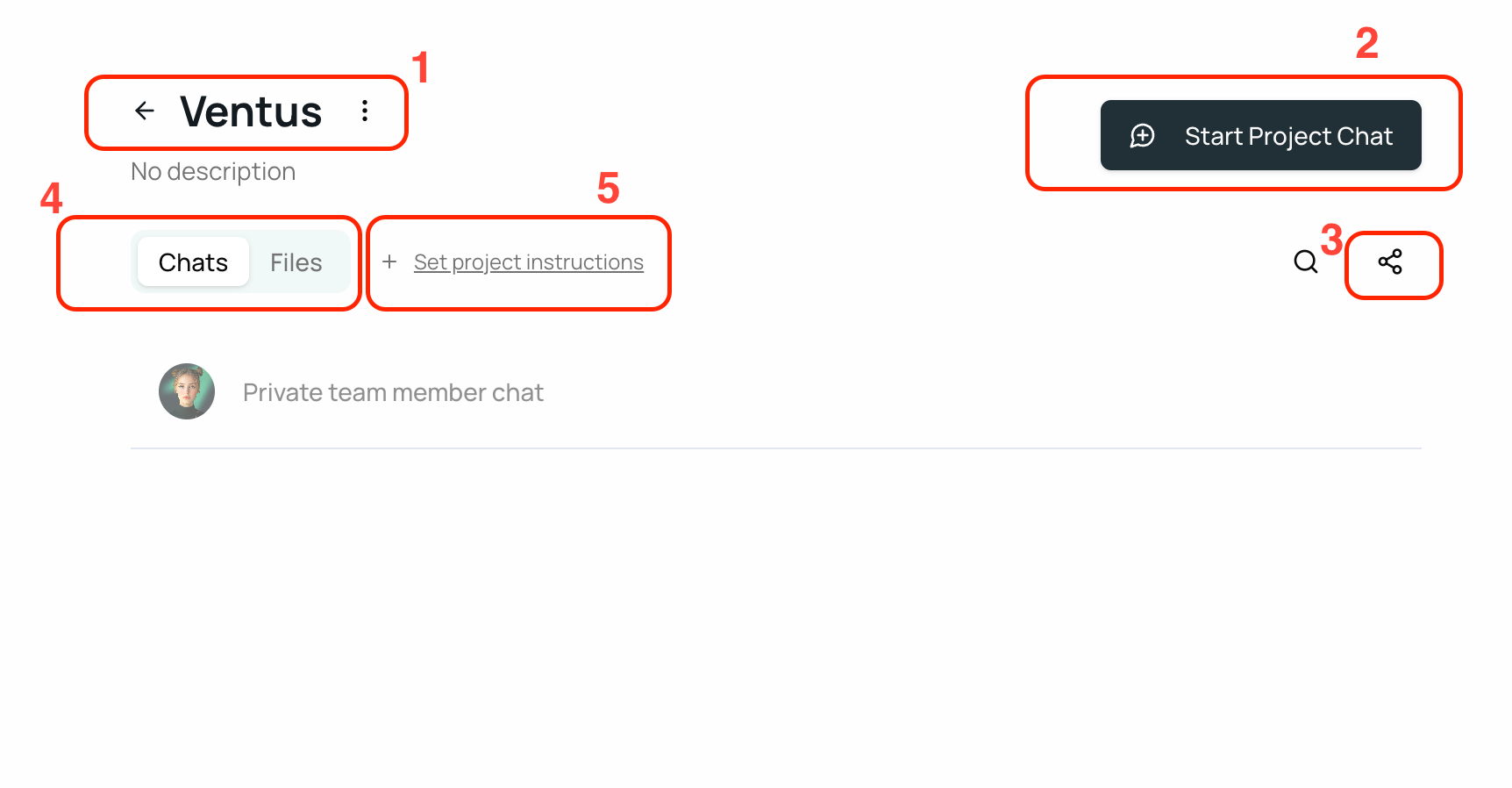
When you open a Project you will see:
Header area with the Project name and description. There is also a Back option to return to the Projects list.
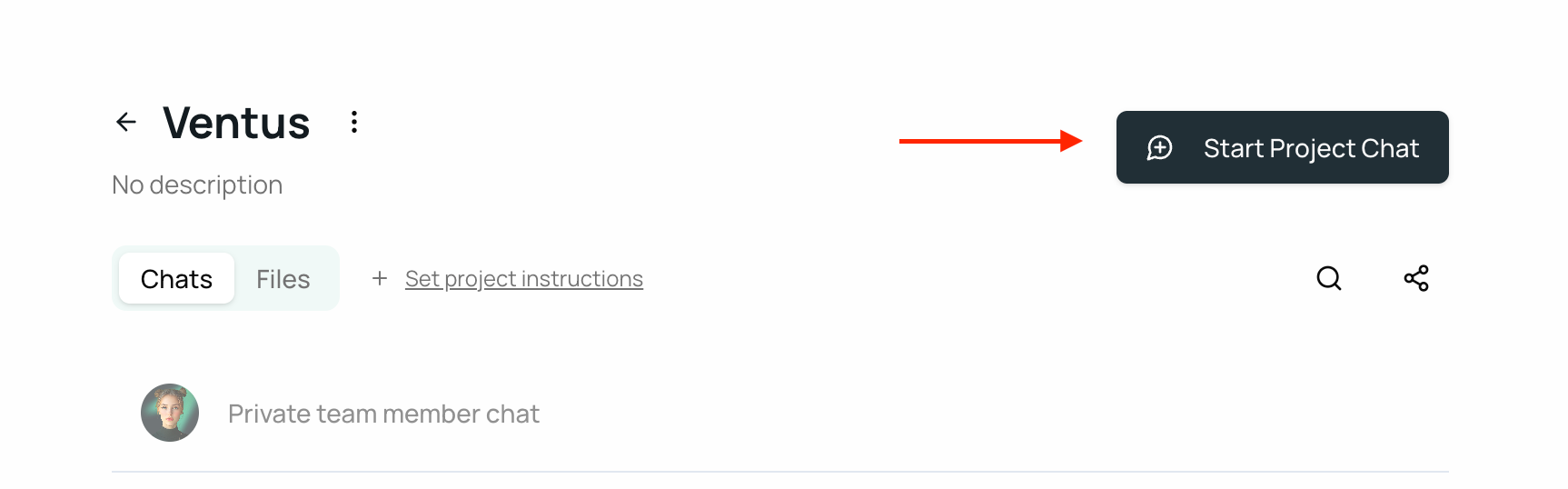
Start Project Chat Button where you can start a project enclosed chat with any agent
Share Icon where you can add teammates to the Project so they can see the Project chats and files.
Chats and Files menu where you see your previous conversations with AI agents about this Project and
Files menu where you can upload documents, PDFs, spreadsheets and images that belong to this Project. You can upload multiple files at one time by clicking on “Upload Files” button.Set Project Instructions where you can write the guidelines which you want agents to follow in this project always.
Good to know
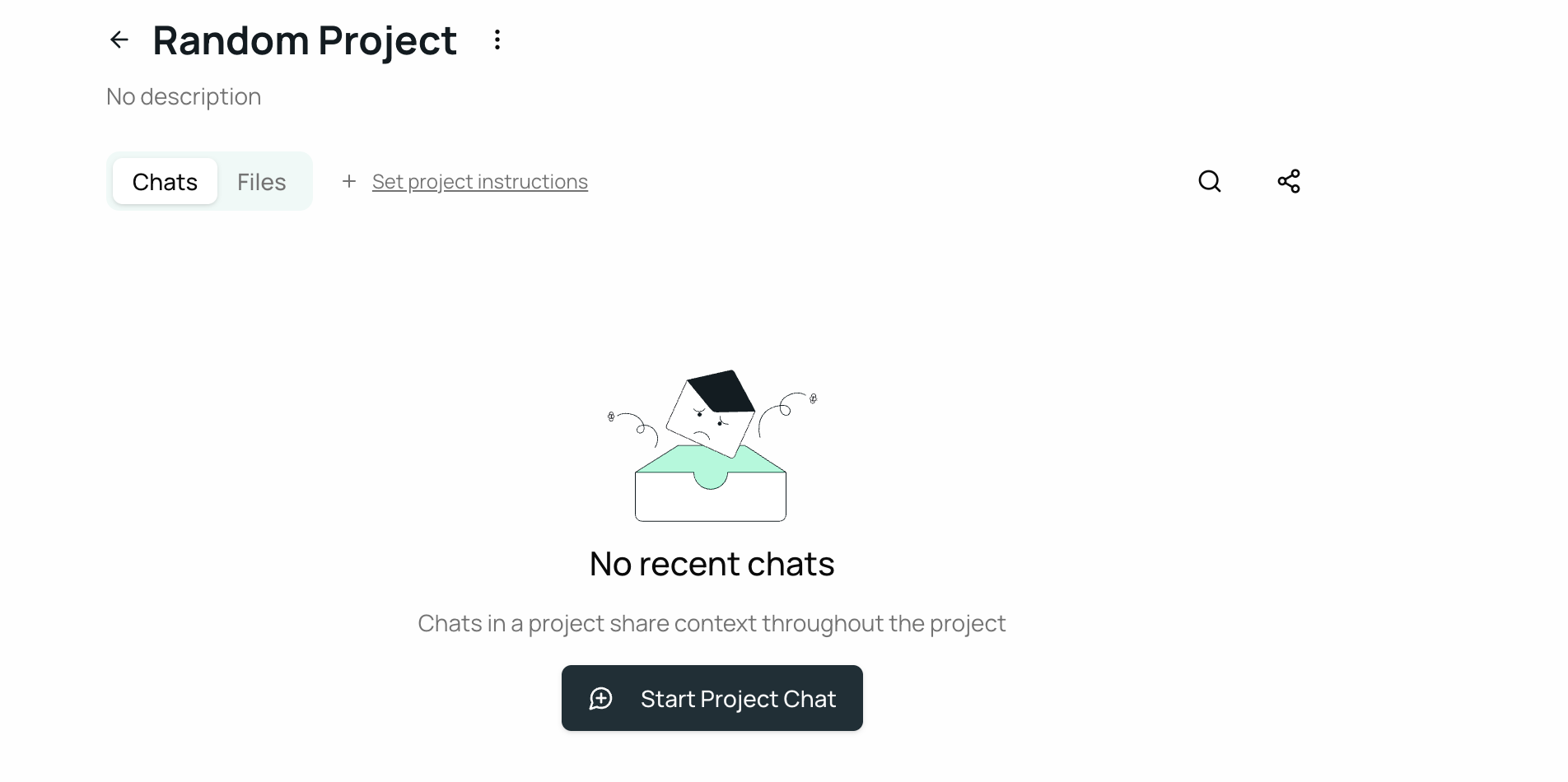
When you first create a Project there are no chats and no files yet. You add them as you start working.
Files you upload inside a Project are available to all teammates and all agents in that Project.
You and your teammates can reference the uploaded files directly in your chats with agents.
Business example
Legal Project "Vendor MSA Negotiations":
Upload the vendor MSA PDF, then ask Ava to highlight termination and liability clauses. Teammates can read also reference the same file you uploaded.
Part 3 - Working with Chats and Agents in a Project
Start a new chat. Click New chat, choose the agent you want and the inbox opens.
Talk about anything in the Project. You can ask about uploaded files, previous chats or even results from other agents inside the same Project.
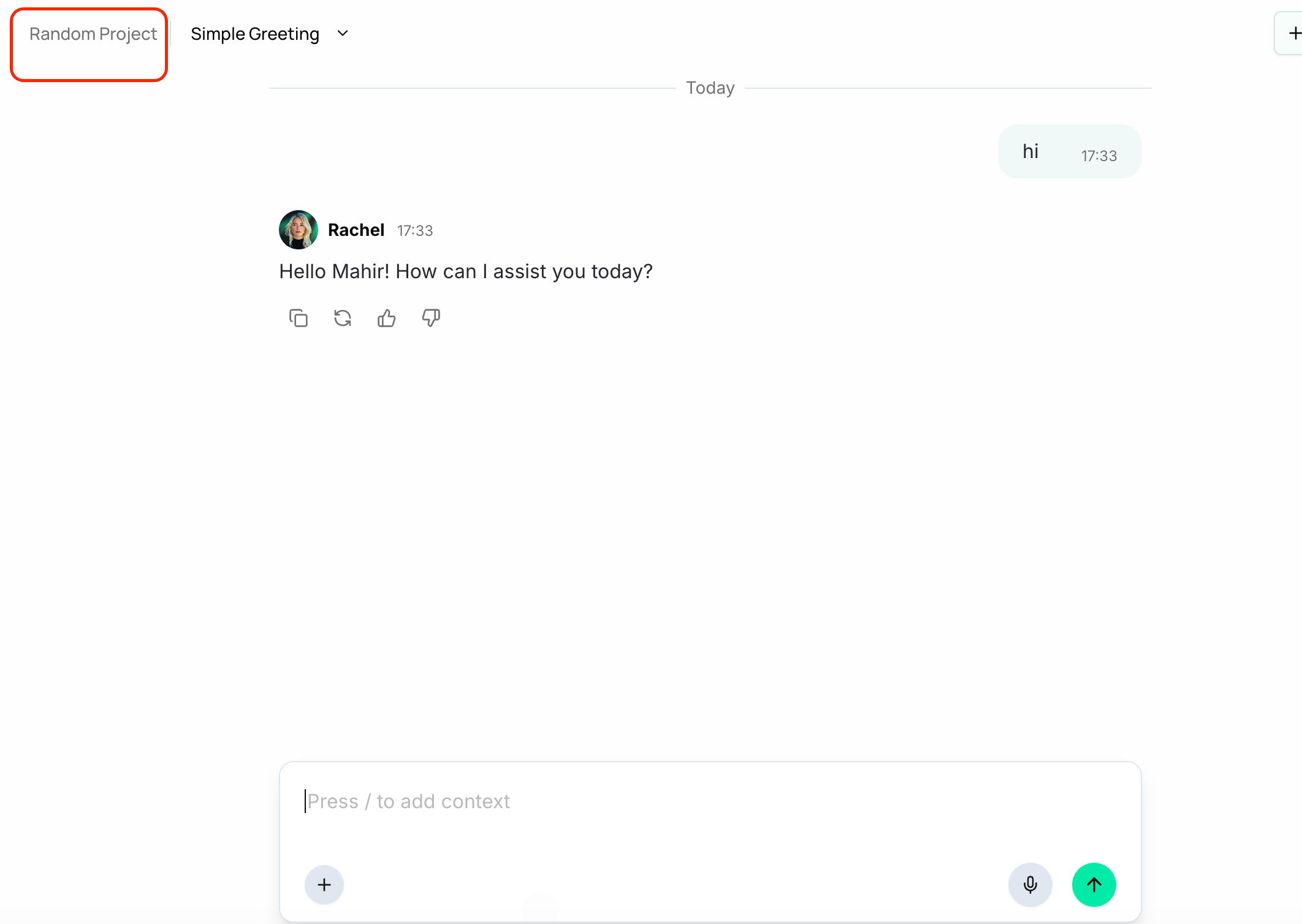
Navigate back to projects, by clicking on the project name on top left of your screen.
Cross reference results. You can discuss one chat while referring to another chat’s outcomes in the same Project.
Members in a same project cannot see the chats started by other project members unless they invite you in a collab chat.
Business examples
Insurance: After Rachel summarizes claim trends, start a second chat with Olivia to build a monthly report using Rachel’s summary.
Finance: Ask Rachel to collect competitor pricing, then ask Olivia to turn it into a management dashboard outline.
HR: Have Rachel draft an onboarding outline, then ask Hera to prepare emails to new hires using that outline.
Part 4 - Managing Files in a Project
Upload files that are relevant to the Project. You and your teammates can then ask agents to analyze or use them.
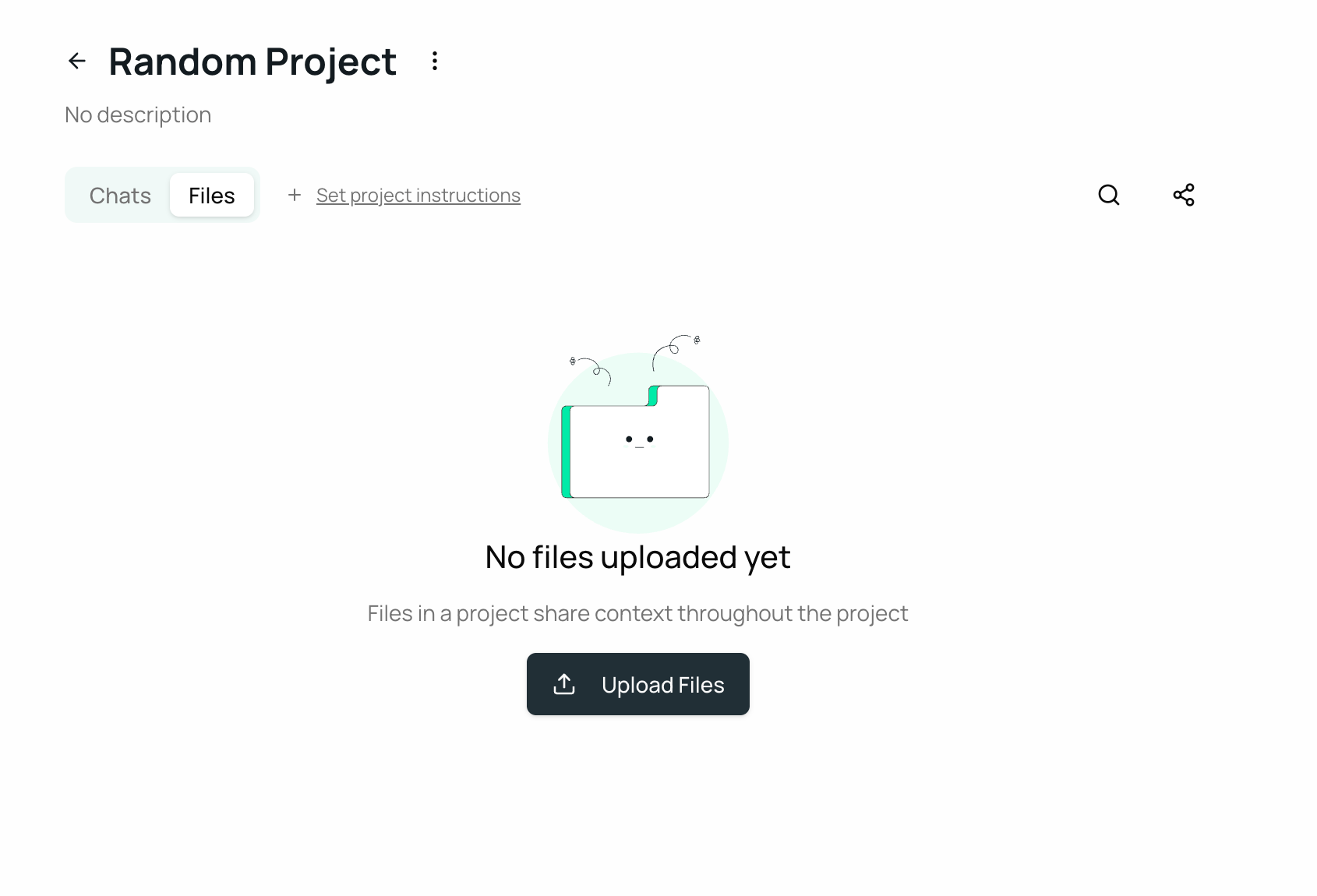
The image shows your screen when there are no files in the project. 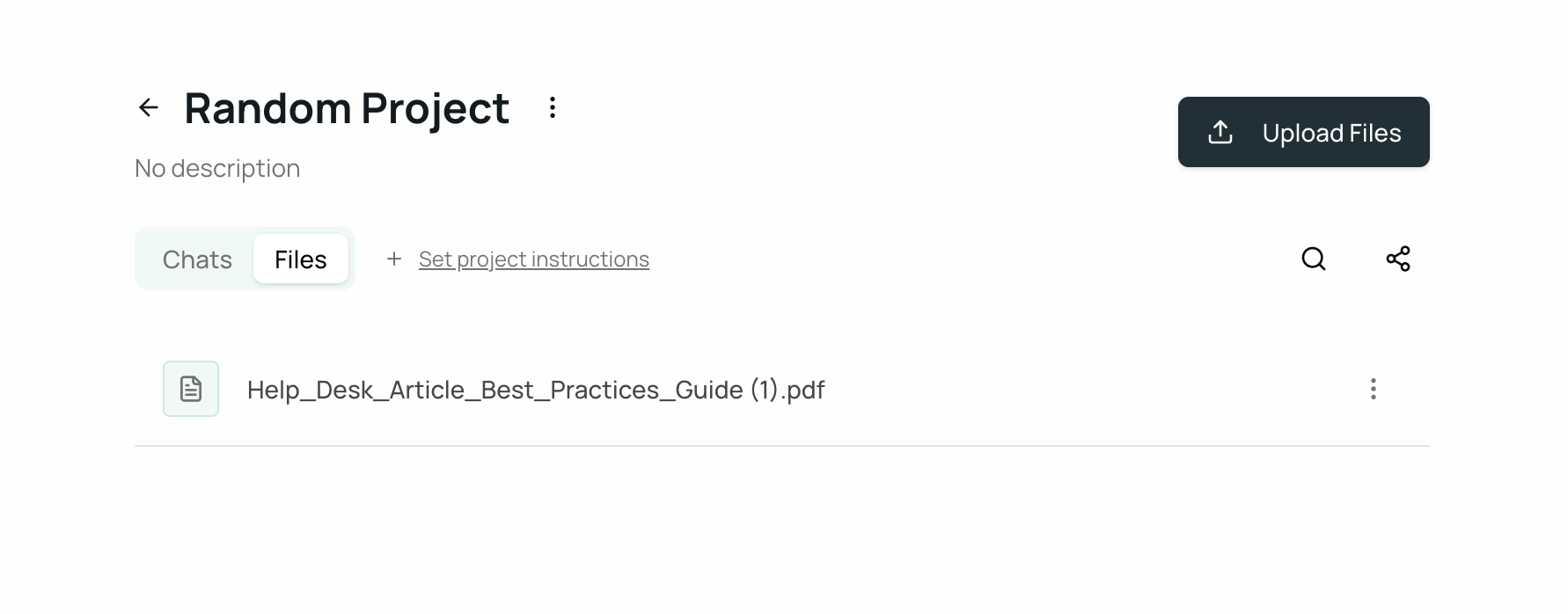
The image shows your screen when there are files in the project.
Automatic saving: Files you upload inside a chat with any agent are automatically saved to that Project. No need to upload twice in the project page.
Business examples
Legal: Upload "Client ABC - NDA.pdf". Ask Ava to flag redlines. Later, teammates can refer to the same file in their chats.
Finance: Upload "January P&L.xlsx". Ask Olivia to summarize variances.
Clear difference
General Inbox is best for quick tasks or experiments that do not belong to a larger initiative.
Projects are best for ongoing work where you need shared context, shared files and collaboration.
Part 6 - Downloading, Deleting and Moving Projects
As conversations continue, everything is saved in your Project’s working memory so you can revisit the history.
You can access any past chat or any uploaded file and you can delete the chat or file you no longer need by clicking on the delete icon besides chats and files.
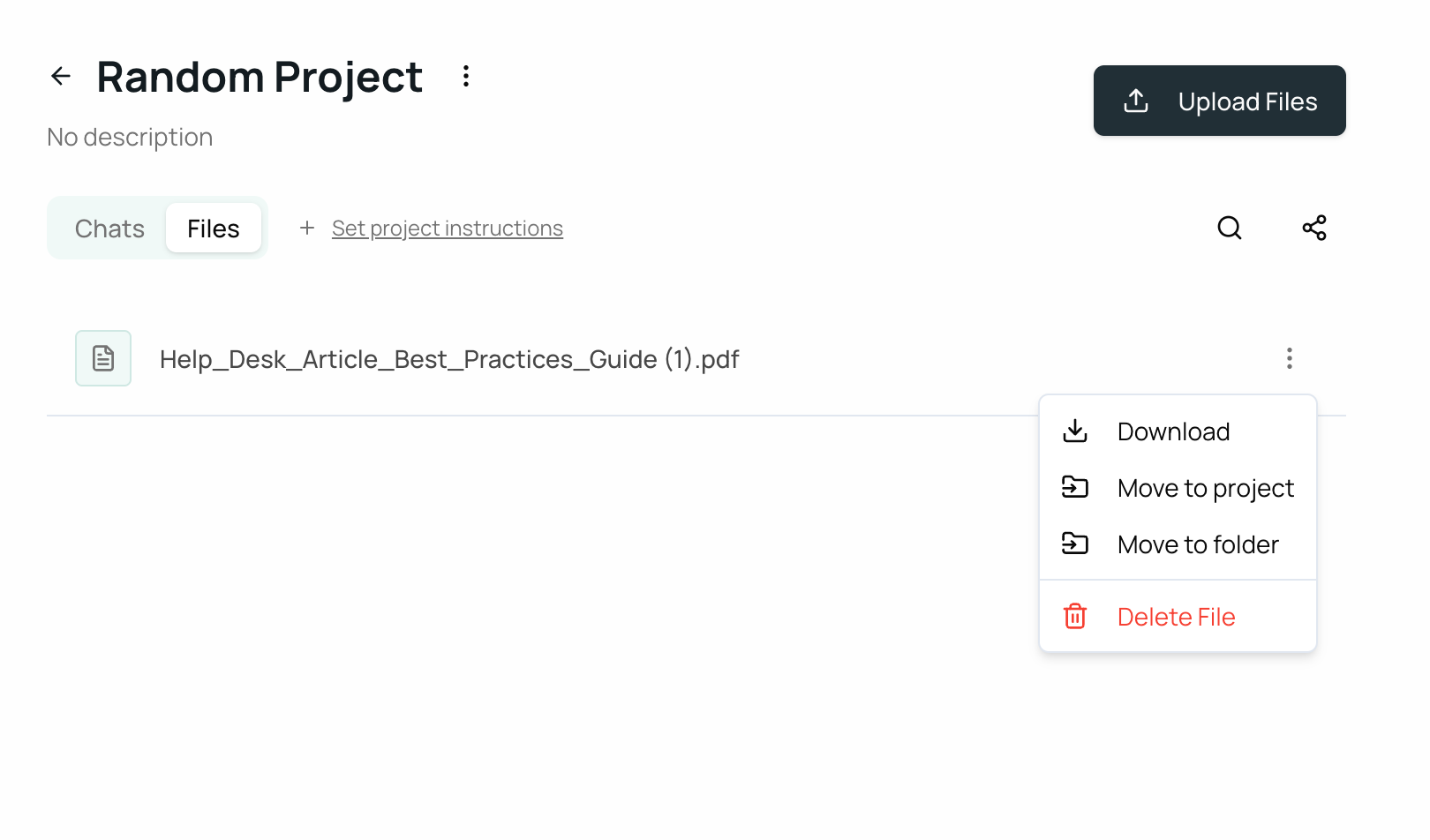
You can also download a file you don’t have but your project teammate has uploaded it.
You can also move a file to another project or to a folder.
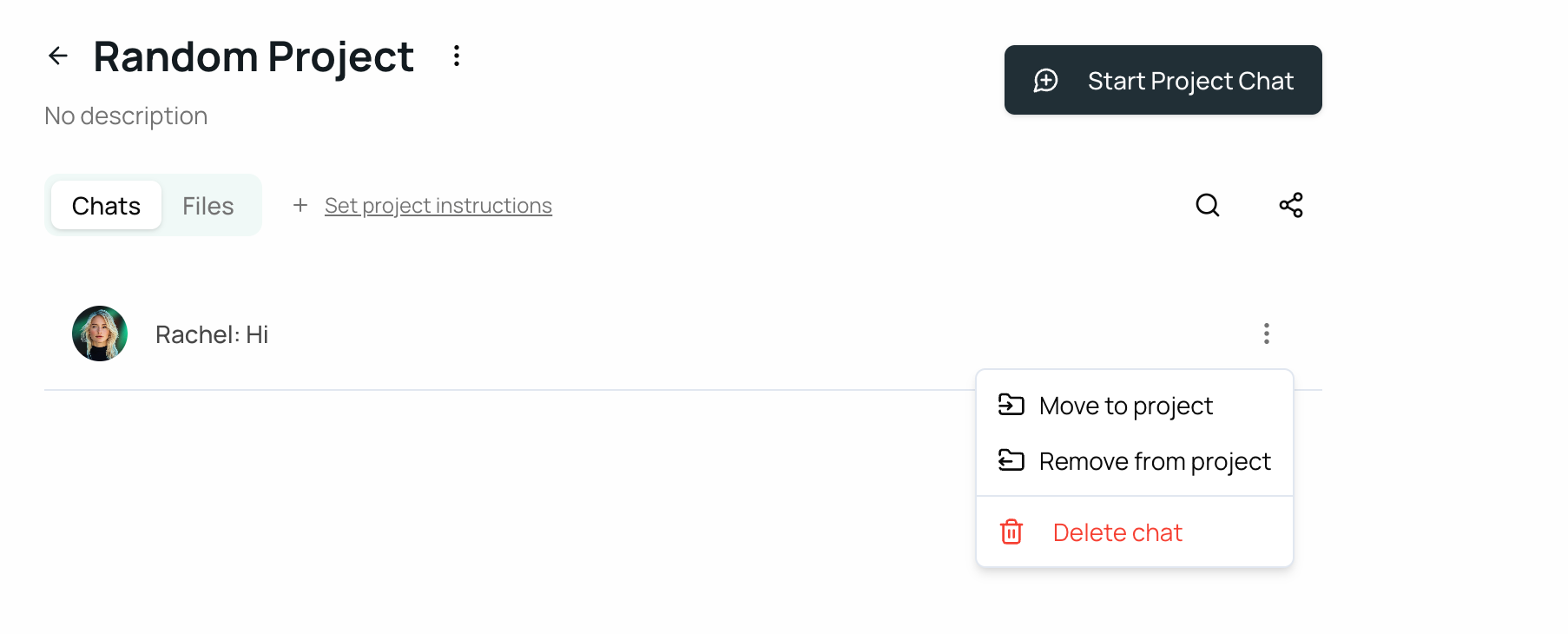
You can also move chats to another project or remove them from project to add them to general inbox.
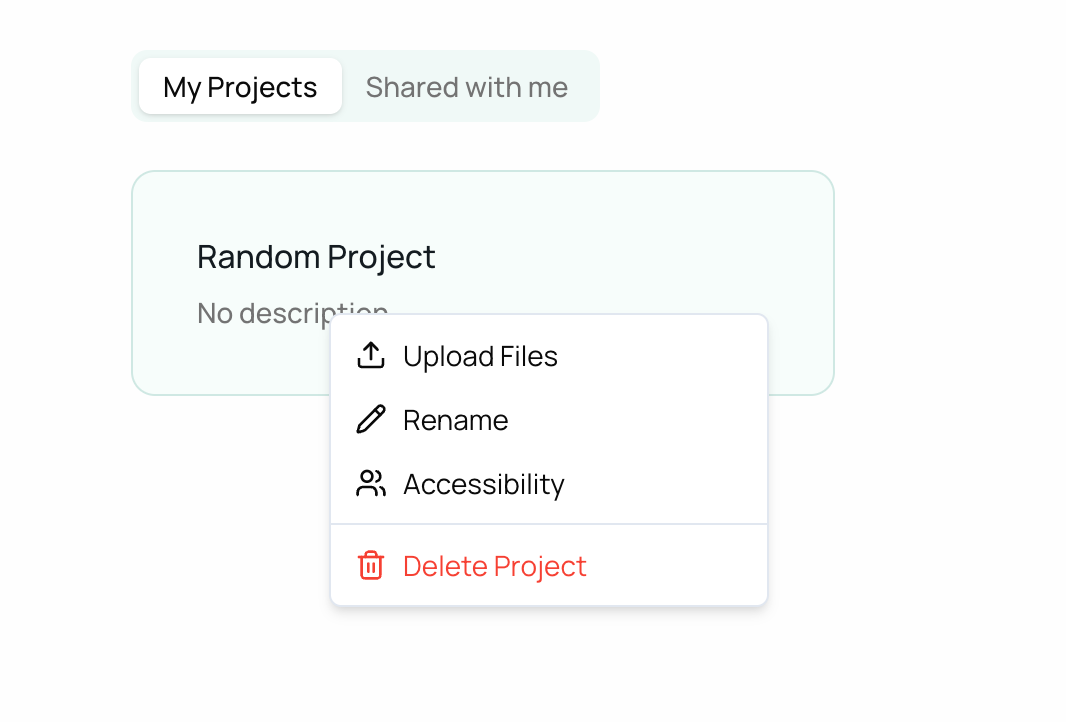
To delete a project, go to the projects page and right click on the project and click delete, your project will be deleted. You can also explore other options there.
Business example
Insurance: After closing a quarter, review earlier summaries and export decisions, then remove outdated drafts if needed.
Quick Start Checklist
Create a Project from the Projects page and add a meaningful name and description.
Invite teammates as Project members.
Upload the key files for the initiative.
Start a chat with the right agent and reference your files.
Start additional chats as needed and cross reference results.
Use the sidebar to switch Projects or return to My Projects.
Keep quick one off conversations in the General Inbox.
Frequently Asked Questions
Q1. Who can see a Project?
Teammates you add as Project members can see the Project’s chats and files.
Q2. Where do my files go when I upload them in a Project chat?
They are automatically saved inside that Project, so you do not need to upload them again elsewhere.
Q3. Can agents use files and results from other chats in the same Project?
Yes. Agents can reference uploaded files and earlier chat results within the Project.
Q4. How do I return to the Projects list?
Use the Back option in the Project header or select My Projects in the sidebar.
Q5. Can I create or find a Project while already chatting?
Yes. You can create a new Project and search for existing Projects from a dropdown while in chat.
Q6. What happens when I first open a new Project?
You will not see chats or files yet until you add them.
Q7. Can I clean up old information?
Yes. You can access saved items and delete what you no longer need.
You are ready to begin
Create your first Project, invite your team, upload your key files and start chatting with your agents. Everything stays connected so you spend less time re explaining and more time delivering results.
Was this helpful?
Still need help? Ask the team